Creating custom model outputs with Python
This guide gives an example of using a python script to customize the output files produced by a RiskScape model.
For example, python packages like matplotlib can be great for taking CSV results
and plotting them as a graph for better visualization. RiskScape lets you integrate
this as part of the model run process, so that plots and other outputs can be generated
automatically any time the model is run.
Before we start
This guide is aimed at users who already have some familiarity with Python and want to use it to create custom model outputs, such as PDFs, graphs or map plots.
We expect that you:
Have been through the Getting started modelling in RiskScape tutorial.
Have some basic Python knowledge and have Python installed on your computer.
Note
There are several different approaches to integrating RiskScape with Python. This tutorial is specifically looking at using Python to change how model results are presented. For other ways to integrate Python with RiskScape, see Python.
Getting started
Setup
Click here to download the example project we will use in this guide. Unzip the file into the Top-level Windows project directory where you normally keep your RiskScape projects.
This project contains a working example of the building-damage model from the
Getting started modelling in RiskScape guide.
CPython
The default implementation of the Python language that most people use is technically called CPython (it’s written in C, hence the name). By executing a CPython ‘post-processing’ script as part of your model run, it gives you a lot of flexibility in tailoring outputs to suit your risk modelling needs.
Note
In order to use a Python post-processing script, you need to have configured RiskScape to use CPython.
We use a few Python libraries in this tutorial. If you want to follow along, you’ll need to have installed:
pandasgeopandasshapelymatplotlibmarkdown_pdftabulate
Each library can be installed by running pip install <name>, or by using your
system package manager. See python.org
for more help installing libraries.
The building damage model
Firstly, try running the building damage model ‘as is’ by entering the following command into your terminal:
riskscape model run building-damage
Tip
If the RiskScape command produced an error, try checking that riskscape -V runs OK,
that the current working directory is where you unzipped the example, and that RiskScape is
setup correctly to use CPython.
Open the project.ini file in a text editor.
This sets up the the building-damage model for RiskScape to use, including parameters it supports and a Python function to determine the damage to each building from a tsunami event.
This tutorial will look at how we can update the model in this project to support a post-processing script
that can transform the model’s parameters and outputs into more
custom model outputs. The project directory contains several Python files (plot.py, choropleth.py,
and pdf.py) that will do the Python processing work for us.
Bar graph
We will start off by using Python to create a simple bar graph.
Open the plot.py file in your text editor. It should look like the following:
import matplotlib.pyplot as plt
import pandas as pd

def bar_graph(df, filename):
    # bar graph plot
    states = ['Light', 'Minor', 'Moderate', 'Severe', 'Collapsed']
    total_count = [ sum([ region for region in df[state] ]) for state in states ]

    plt.bar(states, total_count)
    plt.title('Number of damaged buildings')
    # also add the total count as a label
    for i, y in enumerate(total_count):
        plt.text(i, y, y, ha='center')
    plt.savefig(filename)

# RiskScape post-processing-script entry point:
def function(metadata):
    # RiskScape passes us the output filepaths as a Python dictionary
    outputs = metadata['outputs']

    # open the summary.csv file as a pandas dataframe
    df = pd.read_csv(outputs['summary'])

    plot_filename = model_output('building-damage-states.png')

    # use matplotlib to turn the dataframe into a bar graph
    bar_graph(df, plot_filename)
    return plot_filename
This file contains two Python functions:
the first function
bar_graph()uses Matplotlib code to turn a Pandas DataFrame into a simple bar graph.the second
function()is the entry-point for the post-processing script that RiskScape calls. It reads thesummary.csvoutput file produced by RiskScape into a Pandas DataFrame, and then calls the Matplotlib plotting code.
The last step is to tell RiskScape to execute this script once the model has run.
We can do this by adding a post-processing-script parameter to the model’s INI configuration.
Open up the project.ini file and uncomment the last line in the file so that
the model definition looks like this:
[model building-damage]
description = Model that calculates building damage
framework = pipeline
location = building-damage-pipeline.txt
# Call this python script once the pipeline has run
post-processing-script = plot.py
Save the file and enter the following command to run the model again:
riskscape model run building-damage
You should now see an extra line in the list of outputs for a building-damage-states.png file.
If you open that file up, you should see something like this.
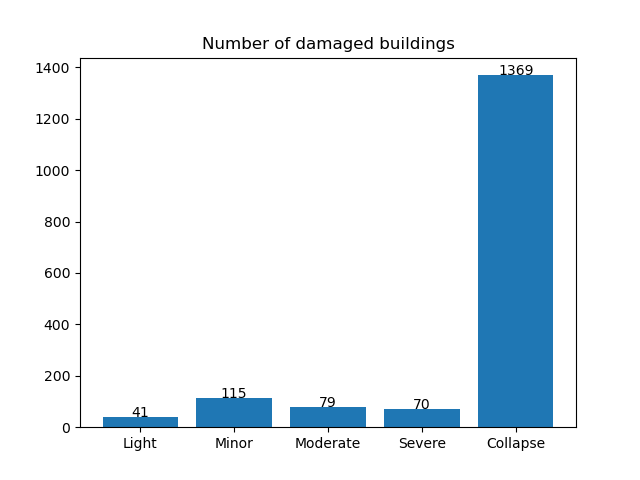
Note
This model uses a weighted random choice to assign a damage state to each building,
so you will get a slightly different result every time you run the model, due to randomness.
RiskScape does support reproducible randomness by using a random-seed,
such as a feature ID attribute.
Registering model outputs
One important thing that plot.py does happens on the following line:
plot_filename = model_output('building-damage-states.png')
The model_output() function is a special Python function provided by RiskScape.
It tells RiskScape that our Python function is writing an output file (called building-damage-states.png).
RiskScape will then make sure the building-damage-states.png file gets saved in
the same directory as all the other model outputs.
The model_output() function simply returns the text string it is given, so it should be
compatible to use with any Python code where you need to create a file.
Tip
We recommend using model_output() whenever you save a file in Python code.
If you don’t, the file will still get written but it might end up in a different output directory,
and the model won’t be compatible with the RiskScape Platform.
Note
If you split up your Python code across multiple .py files, the model_output() function
will not be accessible from other .py files you might import. RiskScape only adds it to
the global name-space of your post-processing-script by default.
Choropleth map
Next, let’s add an output that shows our data on a map.
Go back to your project.ini file and change the post-processing-script line to use choropleth.py.
It should look like this:
[model building-damage]
description = Model that calculates building damage
framework = pipeline
location = building-damage-pipeline.txt
# Call this python script once the pipeline has run
post-processing-script = choropleth.py
Save the file and run the model again.
The model should now produce a new regional-collapsed-buildings.png output.
It should look something like this:
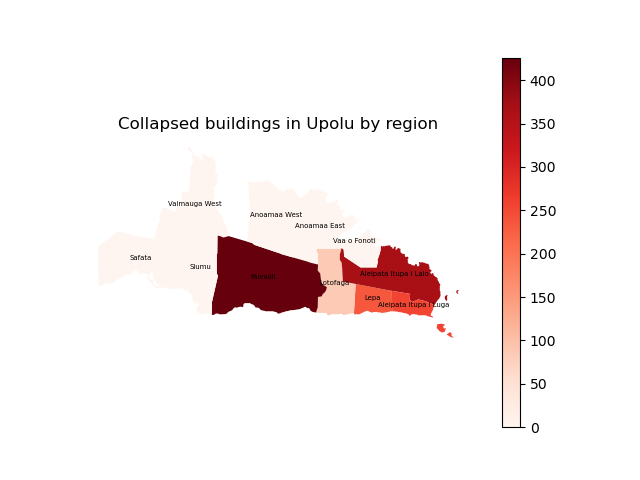
Open the choropleth.py file in your text editor. It should look like this:
import matplotlib.pyplot as plt
import geopandas as gpd

def choropleth_map(gdf, filename, column):

    ax = gdf.plot(column=column, cmap='Reds', legend=True)
    # labels
    gdf.apply(lambda x: ax.annotate(text=x['Region'], xy=x.geometry.centroid.coords[0], ha='center', size=5), axis=1)
    ax.set_axis_off()
    ax.set_title(column + ' building damage in Upolu by region')
    plt.savefig(filename)

    return filename

# RiskScape post-processing-script entry point:
def function(metadata):
    # RiskScape passes us the output filepaths as a Python dictionary
    outputs = metadata['outputs']

    # open the regional-impact.geojson file as a geopandas dataframe
    df = gpd.read_file(outputs['regional-impact'])

    # get the value specified for the choropleth model parameter.
    # This lets us control which column in the output to plot dynamically
    column = metadata['parameters']['choropleth']

    # we can even change the file that gets produced dynamically to match the column name
    output_filename = model_output('regional-%s-buildings.png' % column.lower())

    # use matplotlib to turn the dataframe into a choropleth plot
    choropleth_map(df, output_filename, column)
    return output_filename
This is the Python code that was used to produce the choropleth map. It follows
a similar pattern to our earlier plot.py code - it accepts the DataFrame as well as
the filename it should write the image out to, but it uses the plot method from GeoPandas
to succinctly plot the spatial data, rather than plotting a bar graph with Matplotlib.
This Python file also has some additional code that dynamically changes the data column that is being plotted in the map, which we’ll look at in more detail next.
Python parameters
The metadata passed to the Python post-processing script also contains any parameters that were used by the RiskScape model.
This choropleth example uses a model parameter (called choropleth) to decide which attribute
(or data column name) to use for colouring the map.
The choropleth parameter defaults to ‘Collapsed’, but we can change it when running the model via
a command line parameter:
riskscape model run building-damage -p choropleth=Exposed
The choropleth.py Python code will now plot the Exposed attribute instead of the default Collapsed attribute.
This also changes the name of the output file to reflect the data it contains.
Open the new regional-exposed-buildings.png output and see how it compares to the
regional-collapsed-buildings.png output produced previously.
Try running the following commands to plot the total damaged buildings by region, and the mean inundation depth (for exposed buildings). Open the plots that are produced and see how they have changed.
riskscape model run building-damage -p choropleth=Damaged
riskscape model run building-damage -p choropleth=Mean_Depth
PDF outputs
You can also use Python to generate PDF outputs. This is useful for generating reports, or even just to collect all your other outputs on a single page for sharing.
Update your project.ini file so that pdf.py is used as the post-processing script:
[model building-damage]
description = Model that calculates building damage
framework = pipeline
location = building-damage-pipeline.txt
# Call this python script once the pipeline has run
post-processing-script = pdf.py
The pdf.py code uses a Python library called
MarkdownPDF to convert markdown text into a PDF document.
Markdown is a simple way to apply styling, such as headings and formatting,
to a plain-text document.
Note
There are many different Python libraries that you can use to create a PDF. We have used MarkdownPDF here because it works well as a simple example.
Save your project.ini file and run the model again.
It should now produce a Report-Summary.pdf PDF output.
Open the PDF file - it should look something like this:
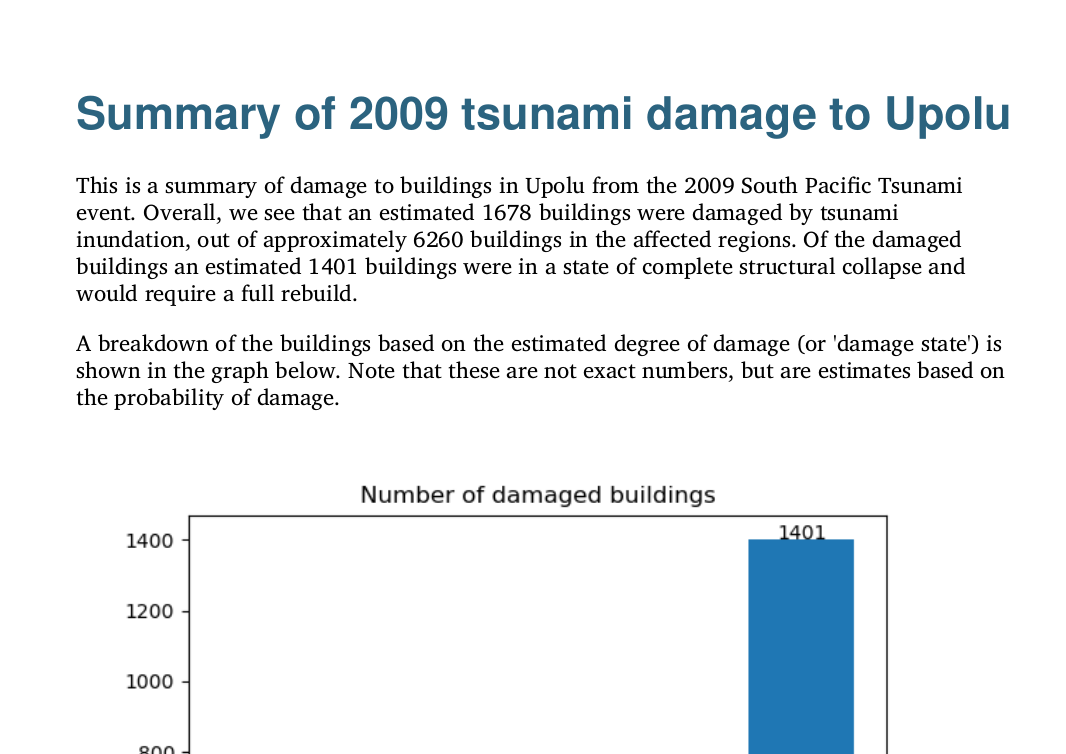
The template markdown for our report is stored in a file called template.md.
Open the file in your preferred text editor and have a look. You’ll notice some
text in curly brackets (braces). The Python pdf.py code is reading this template
file and then swapping out that placeholder text for our actual model results.
This next part is the Python code that reads the template.md file and replaces the placeholder
values (in {}s) with the actual results coming out of the model.
# replace the {placeholder} values in the template with the actual results
with open("template.md") as template:
    text = template.read().format(
        total_damaged=total_damaged,
        total_buildings=sum(totals.values()),
        total_collapsed=totals['Collapsed'],
        bar_graph_fname=bar_graph_filename,
        choropleth_map_fname=choropleth_map_filename
    )
The next bit appends a table of the regional results to the PDF. Handily, the Pandas DataFrame has a
convenient .to_markdown() method, so we don’t have to make the table ourselves.
# insert the simplified table of results
text += "\n" + table.to_markdown(index=False)
Finally, the code passes the markdown string to MarkdownPDF for it to generate our PDF.
pdf = MarkdownPdf()
pdf.add_section(Section(text), user_css=style)
pdf.save(model_output('Report-Summary.pdf'))
Optional PDF Styling
We skipped over one part of the pdf.py code, which applies styling to
the final PDF:
with open("style.css") as file:
    style = file.read()
This is applies CSS to the PDF, which is the same styling used by web pages. In this case, it changes the colour and font of the heading, and applies styling to the table.
With the approach used in this example, markdown supports basic font styling (such as bold and italics), whereas CSS would be used to change other aspects (such as the font type, size, and colour).
Another alternative approach would be to use LaTeX to control the styling when generating a PDF from Python.
Testing your Python code
Running Python manually
When you’re writing your own Python code, it can take quite a long time to test
if you have to run your entire RiskScape model every time.
You can test your Python code manually, outside of the RiskScape model, by using the
if __name__ == '__main__': Python idiom.
The bottom of your pdf.py script already contains the following code:
# code to manually run the script outside of RiskScape
if __name__ == '__main__':

    metadata = {
        'parameters': {'choropleth': 'Collapsed'},
        'outputs': {
            'regional-impact': './output/example/regional-impact.geojson',
            'summary': './output/example/summary.csv',
        }
    }

    def model_output(name):
        filepath = "output/example/%s" % name
        print('Writing ' + filepath)
        return filepath

    function(metadata)
This mimics the way RiskScape calls your function after the pipeline completes,
by manually setting up a metadata dictionary containing the parameters and outputs to use.
To make sure there’s an output for it to use, run the model using the --output parameter to write the model results to a fixed location that matches what the script expects:
riskscape model run building-damage --replace --output output/example
Then try running the pdf.py script manually with python:
python pdf.py
The Python script should have generated .png and .pdf files in the output/example
directory, similar to what happens in a RiskScape model run.
Tip
Running the Python script manually allows you to test changes to your Python code without having to run the entire RiskScape model every time.
Input data subset
Another alternative to speed up testing your Python code is to simply run the model over a subset of results. Instead of running the model over the entire building dataset, you could limit the model run to the first 50 buildings.
This particular model has a input_exposures_rows parameter that controls the number
of rows of input data that the model loads. Try running the following command:
riskscape model run building-damage -p input_exposures_rows=50
Now if you run the model again, only the first 50 buildings will be included in the results. Although it does not make a huge difference to the model run-time in this simple example, it can make a big difference if your model is processing millions of assets.
Though you obviously won’t get an accurate result without all the data, the model will run much quicker, meaning you can test changes to your Python code faster. This is useful when you are changing the format of the model results as well as the Python code, e.g. you realized you needed to add an extra column in the results CSV.
Note
Advanced users could look at the building-damage-pipeline.txt code to see
how the $input_exposures_rows parameter is used in the pipeline.
Summary
This tutorial has covered some simple examples of how you can use Python to create customized outputs, such as plots, maps, or even PDF reports, when you run a RiskScape model.
Python is a very flexible language, so potentially anything you could do in Python could be integrated with the RiskScape model run.